How can we help you?
Find guides to set up your account, install apps on TV, manage content, and run digital signage with ScreenPilot.
Browse by topic
Detailed guides
Tap a topic below to expand step-by-step instructions
Overview
Access ScreenPilot
Open screenpilot.live in your browser to explore ScreenPilot and create your account.
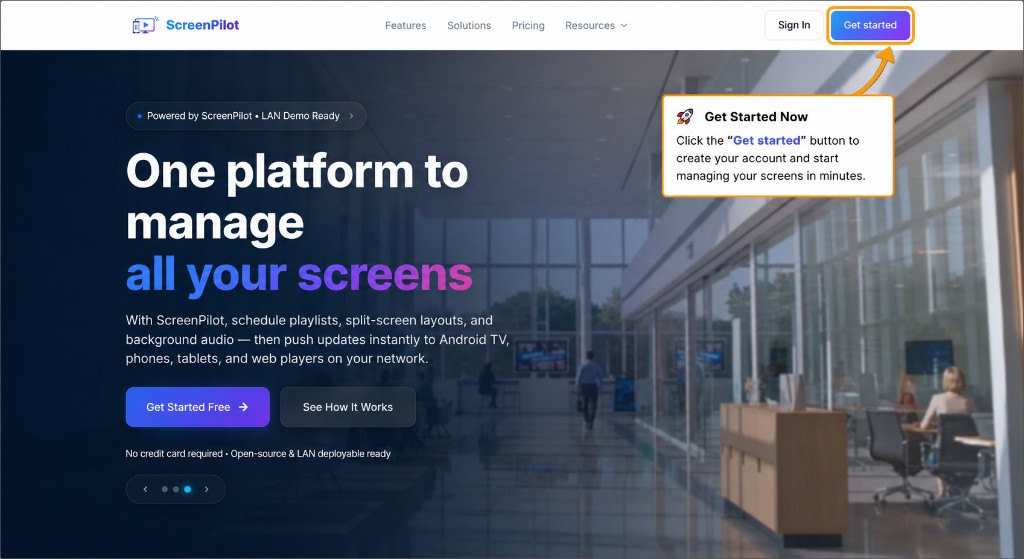
Get Started Now
Click the Get started button to create your account and start managing your screens in minutes.
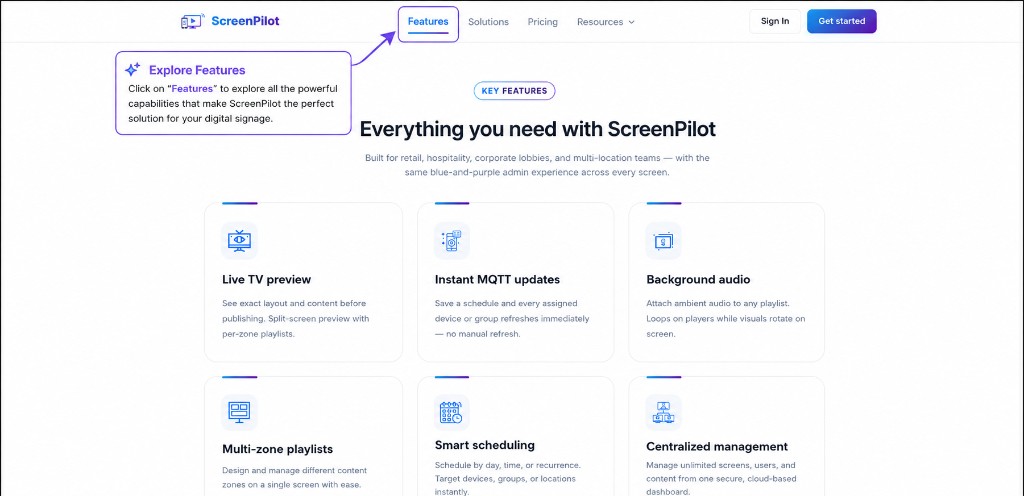
Explore Features
Click Features in the navigation to explore live TV preview, MQTT updates, background audio, multi-zone playlists, smart scheduling, and centralized management.
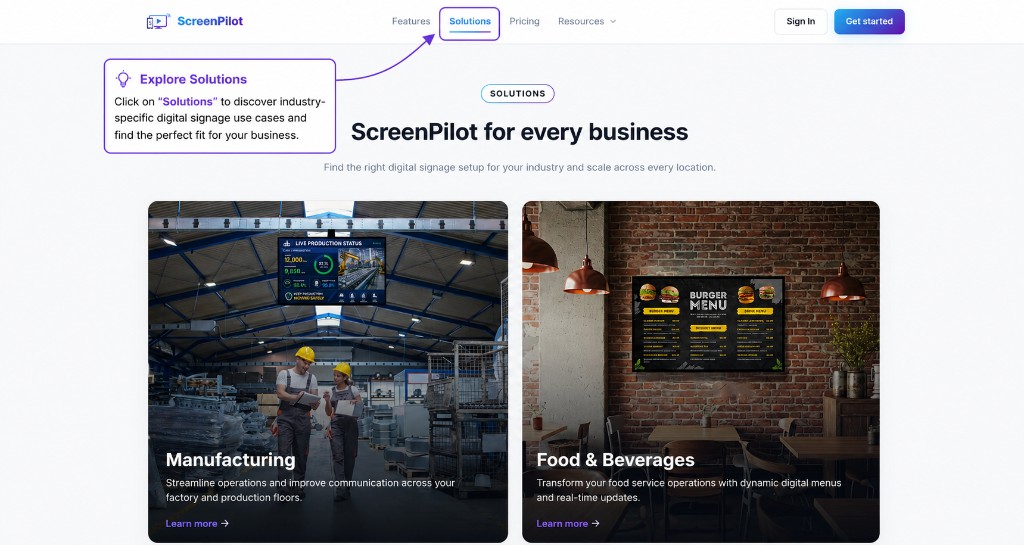
Explore Solutions
Click Solutions to discover industry-specific digital signage use cases — from manufacturing to food & beverages — and find the right fit for your business.
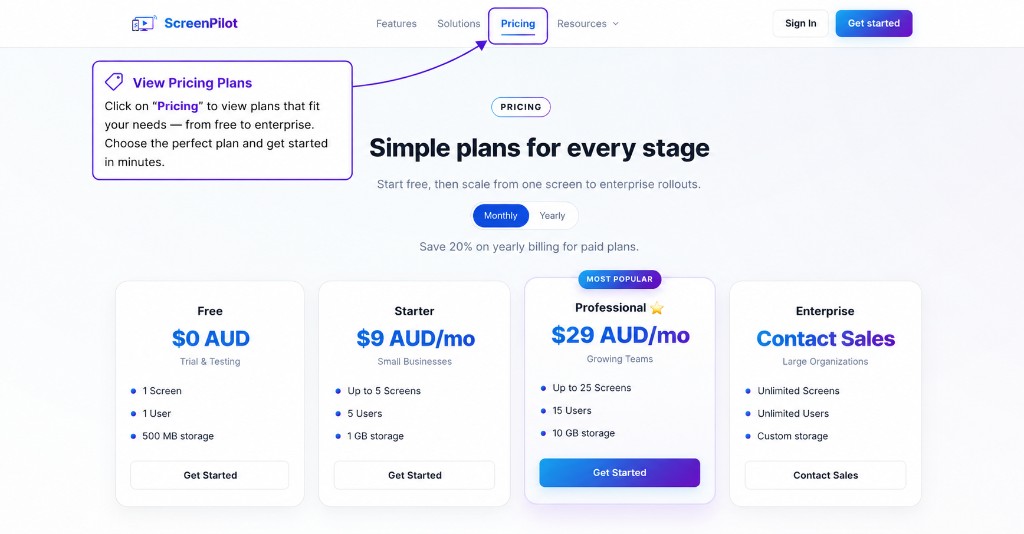
View Pricing Plans
Click Pricing to view plans that fit your needs — from free to enterprise. Choose Monthly or Yearly billing and get started in minutes.
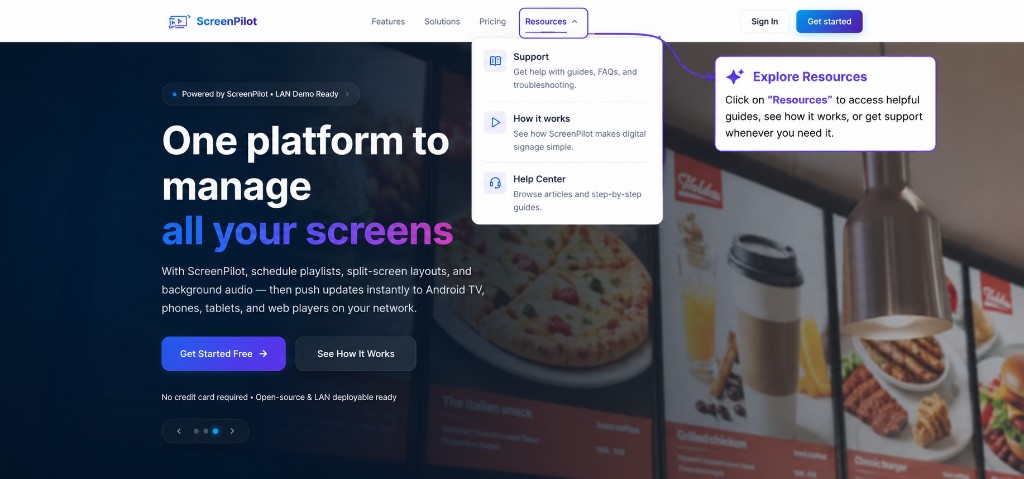
Explore Resources
Click Resources to access Support, see How it works, or open the Help Center for step-by-step guides whenever you need help.
Account Setup
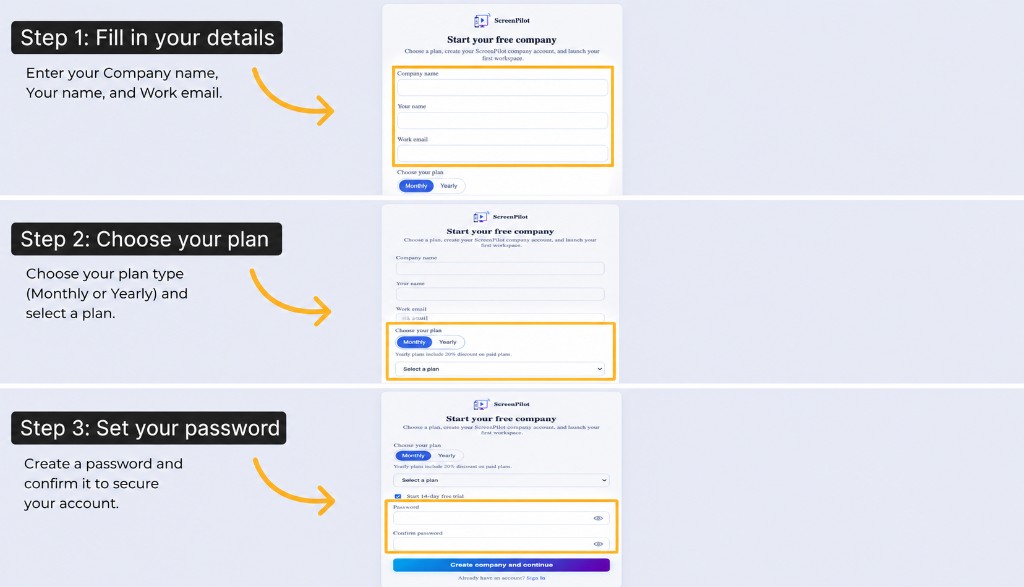
Start Account Setup
Fill in your company name, your name, and work email. Choose your plan (Monthly or Yearly), then create and confirm your password to complete signup.
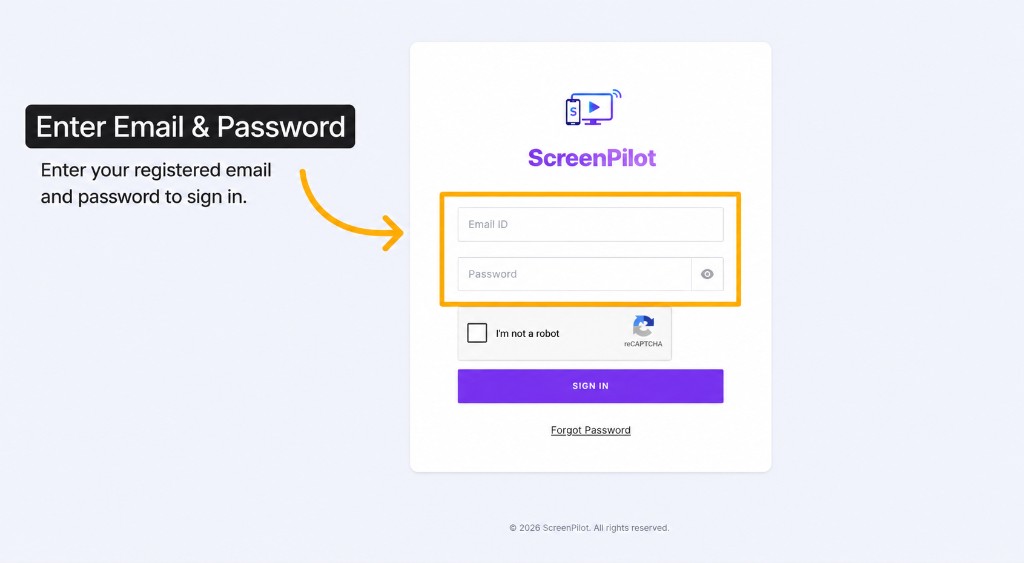
Enter Email & Password
Enter your registered email and password to sign in to your ScreenPilot account.
Install Apps on TV & Devices
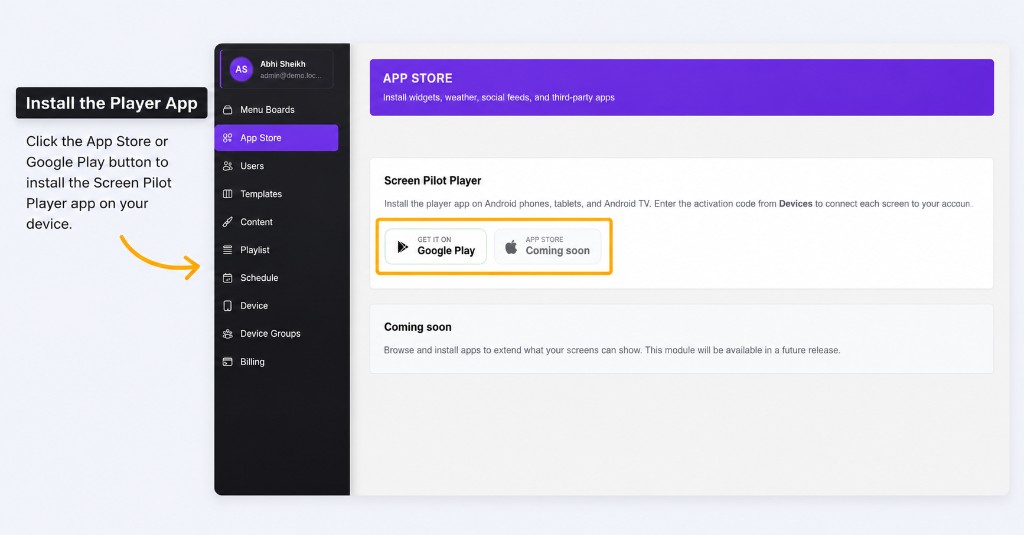
Install the Player App
Open App Store in the sidebar, then click the Google Play or App Store button to install the ScreenPilot Player app on your Android phone, tablet, or Android TV. Use the activation code from Devices to connect each screen to your account.
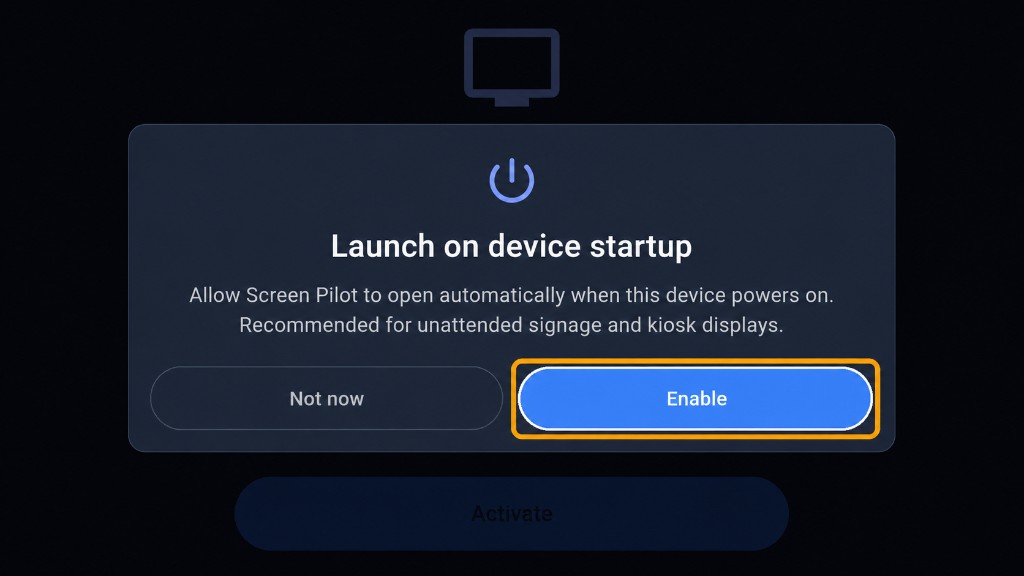
Launch on Device Startup
When prompted, tap Enable to allow ScreenPilot to open automatically when the device powers on. Recommended for unattended signage and kiosk displays.
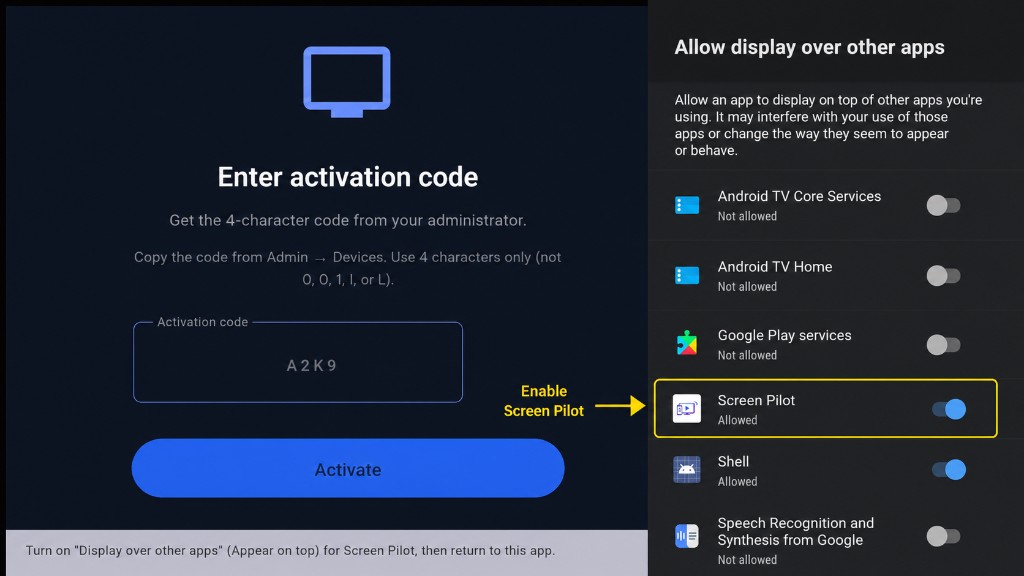
Enable Screen Pilot
Turn on Display over other apps (Appear on top) for ScreenPilot in your device settings, then return to the app to continue setup.
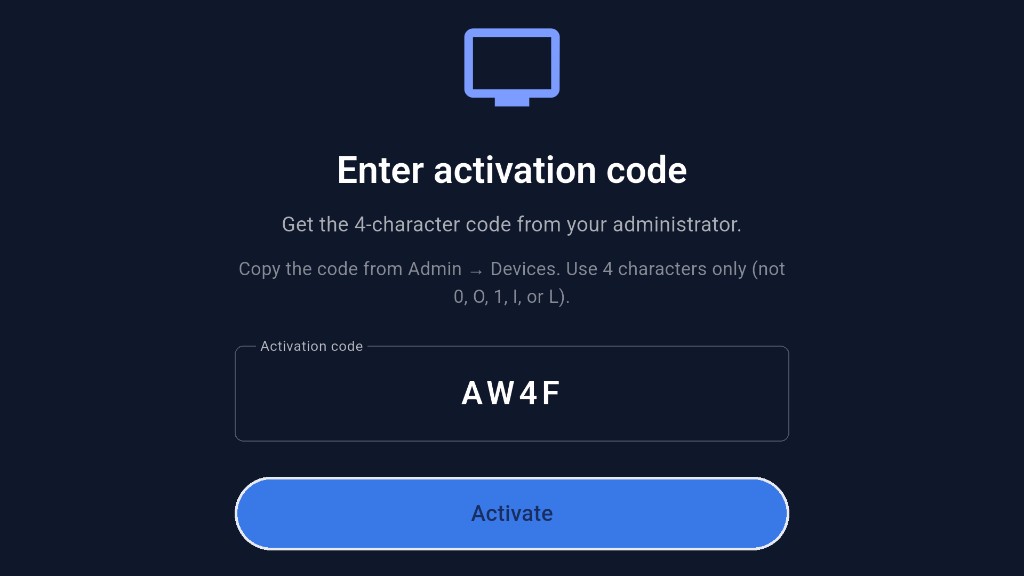
Enter Activation Code
Open the ScreenPilot Player app on your TV or device. Enter the 4-character activation code from Admin → Devices, then tap Activate.
Device & Activation Code
Add Device
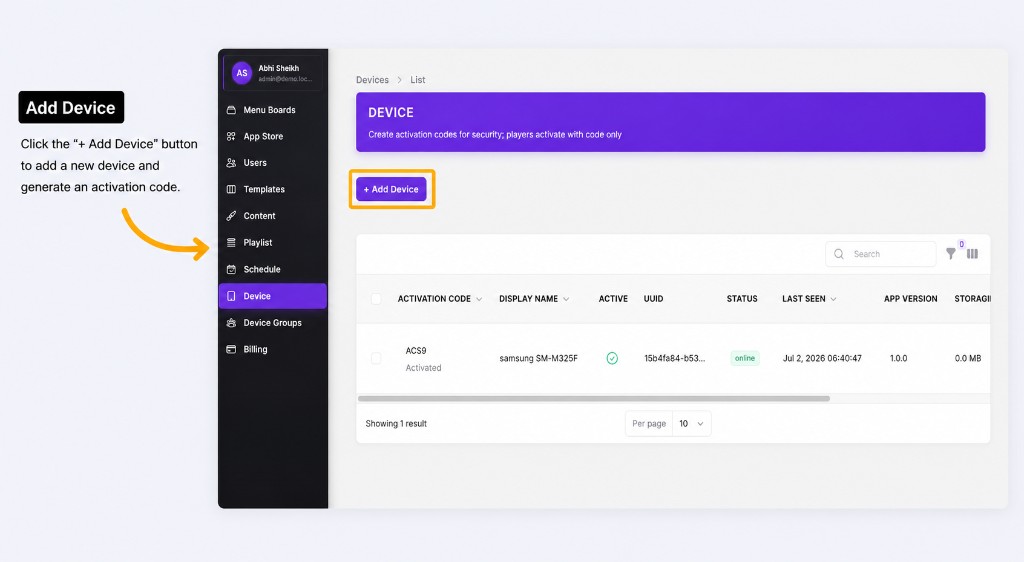
Open Device in the sidebar, then click the + Add Device button to add a new device and generate an activation code.
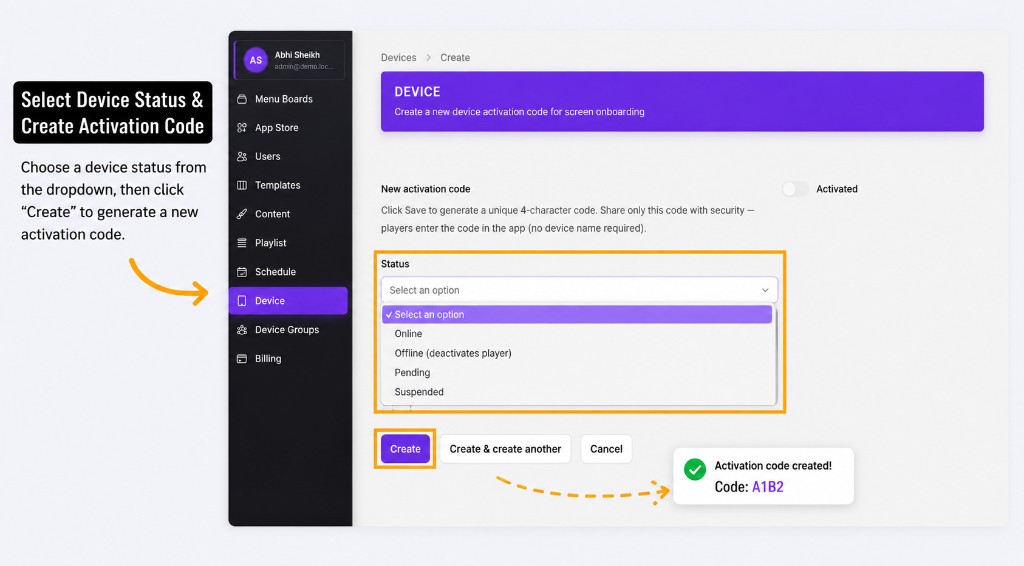
Select Device Status & Create Activation Code
Choose a device status from the dropdown, then click Create to generate a new activation code.
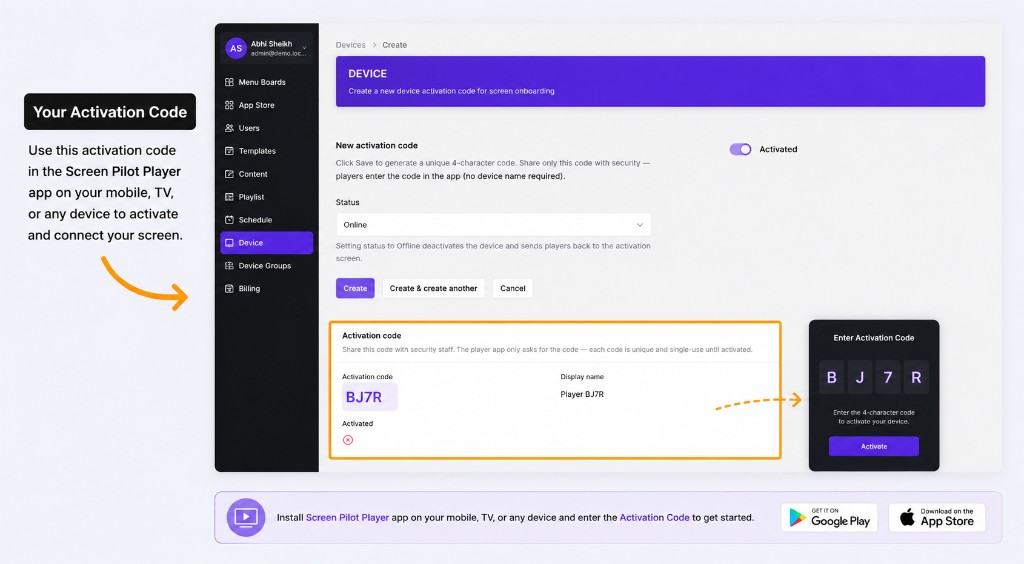
Your Activation Code
Use this activation code in the ScreenPilot Player app on your mobile, TV, or any device to activate and connect your screen.
Device Groups
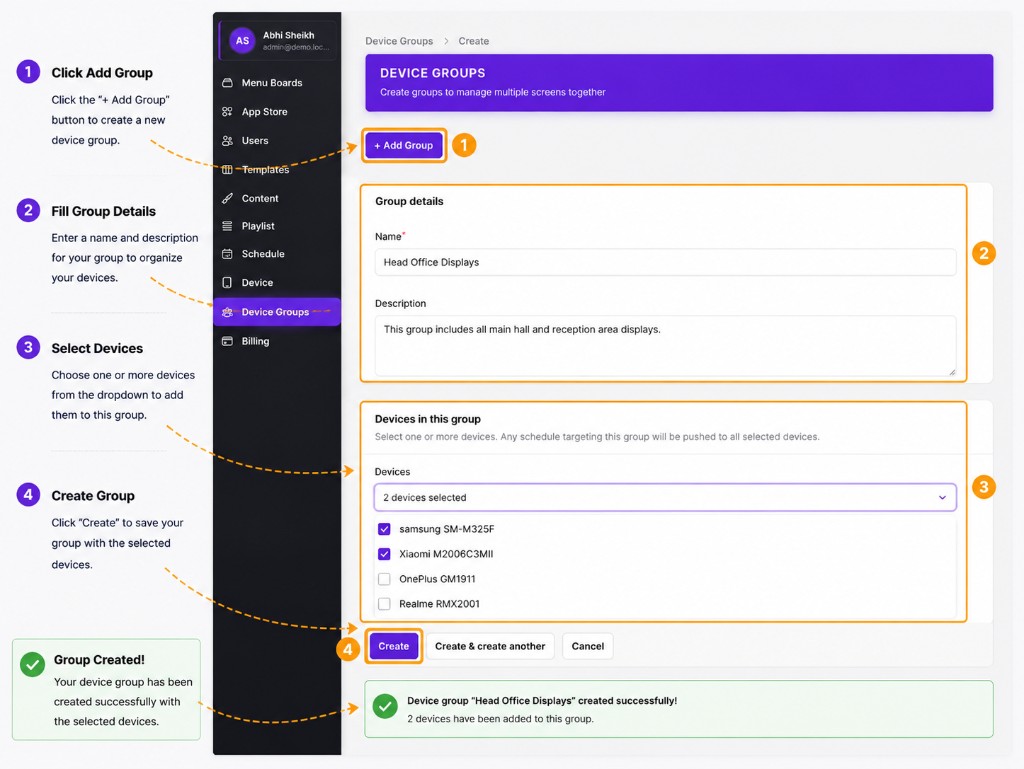
Create Device Groups
Open Device Groups in the sidebar, click + Add Group, enter a name and description, select devices to include, then click Create to save your group.
Menu Boards & User Management
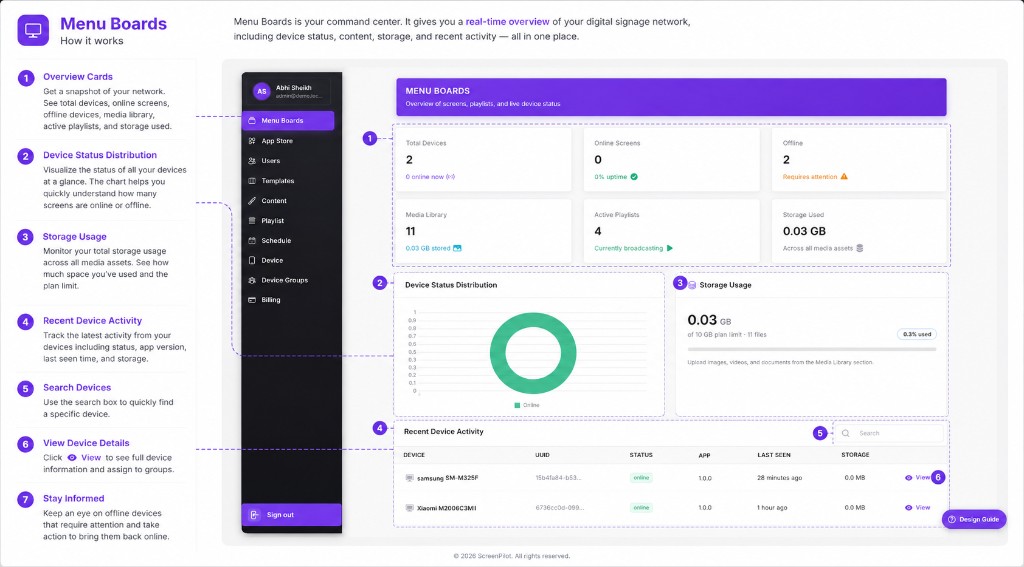
Menu Boards — How It Works
Open Menu Boards in the sidebar for a real-time overview of your digital signage network — device status, content, storage, recent activity, and more, all in one place.
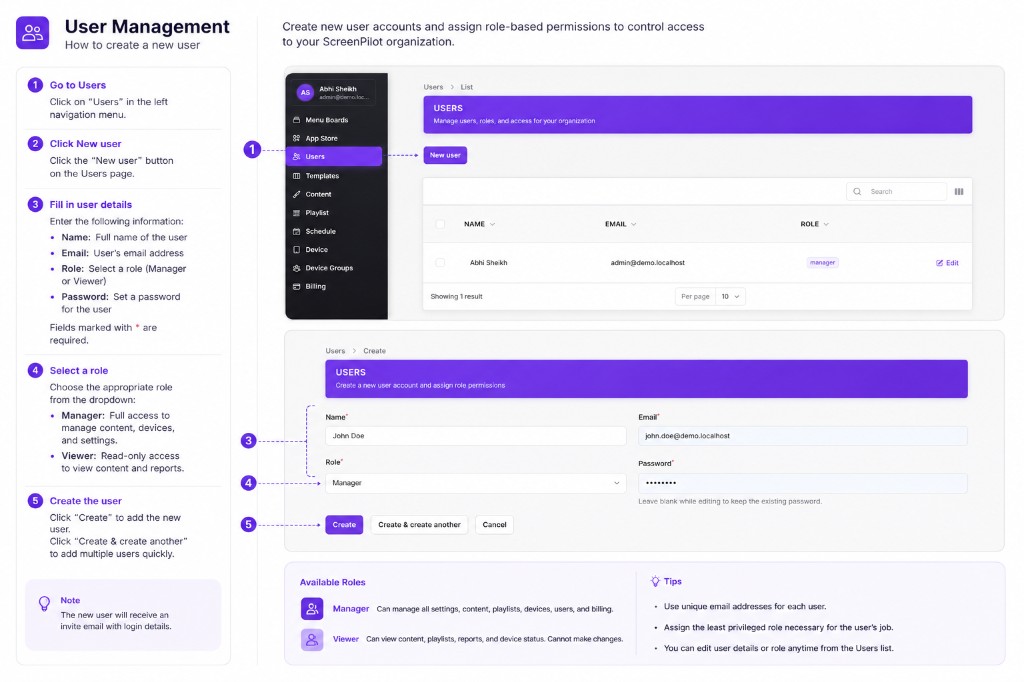
User Management — Create a New User
Go to Users, click New user, fill in name, email, role (Manager or Viewer), and password, then click Create to add the user to your organization.
Content & Templates
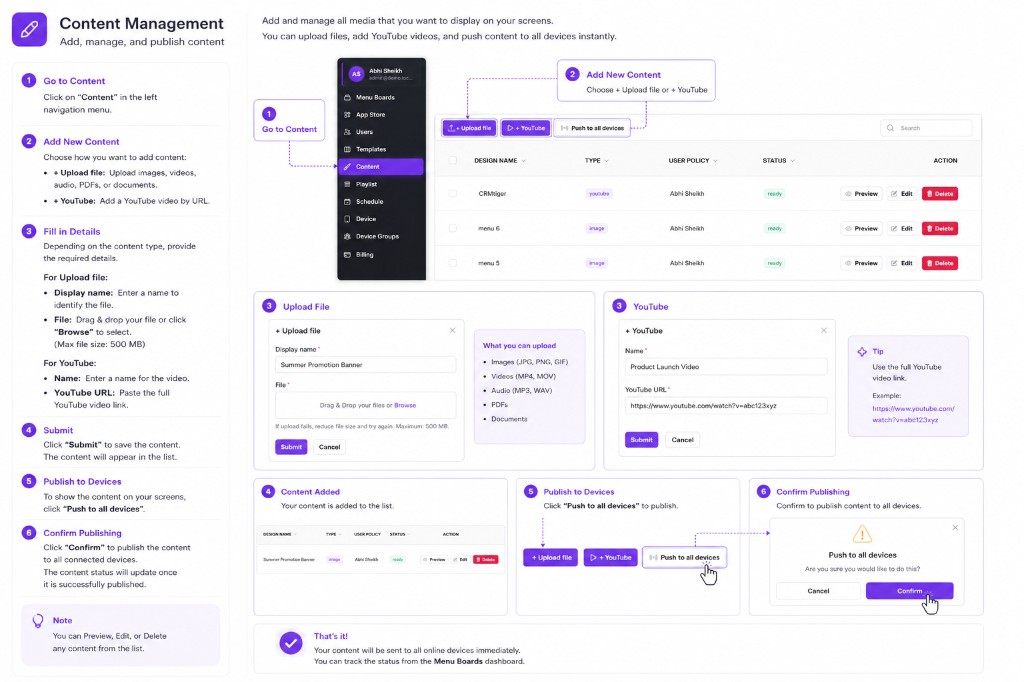
Content Management — Add, Manage & Publish
Go to Content to upload files or add YouTube videos, submit your media, then click Push to all devices and confirm to publish content to your screens instantly.
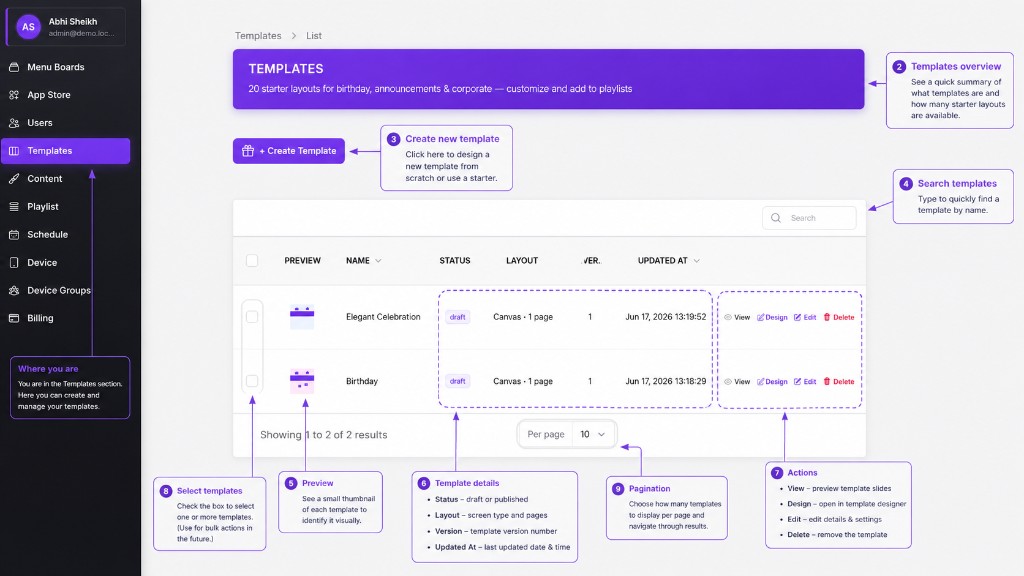
Templates — Create & Manage
Open Templates in the sidebar to browse starter layouts, click + Create Template to design a new one, and use View, Design, Edit, or Delete to manage your templates.
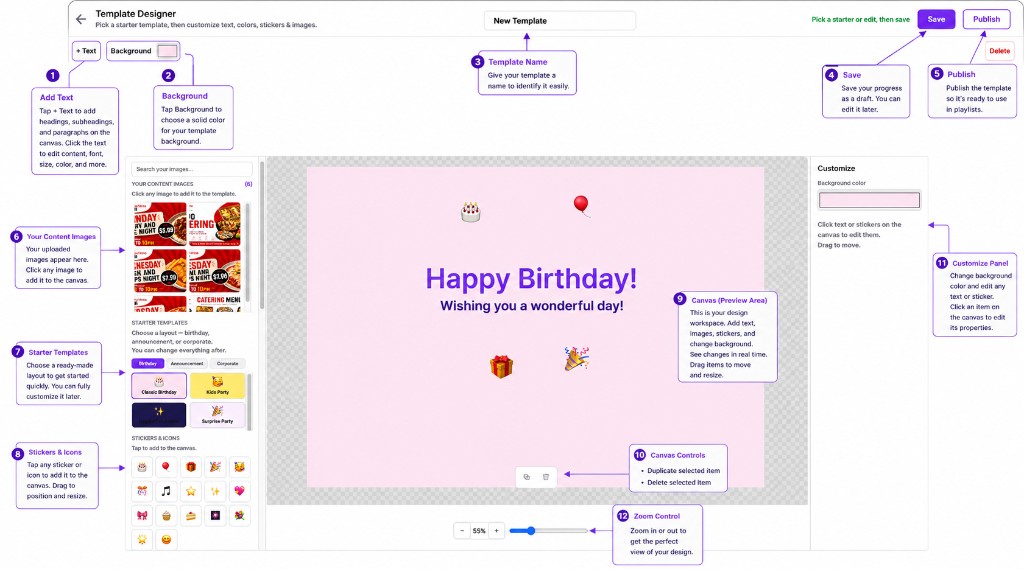
Template Designer
Pick a starter template, then customize text, colors, stickers, and images on the canvas. Click Save to keep a draft or Publish to make the template available for playlists.
Playlists & Scheduling
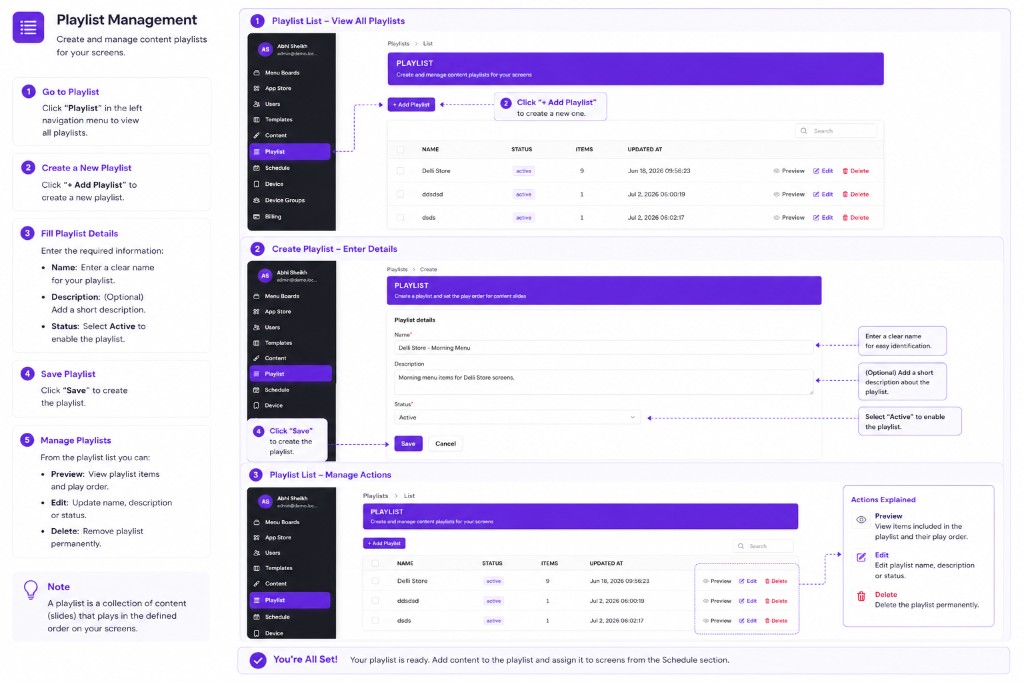
Playlist Management — Create & Manage
Go to Playlist in the sidebar, click + Add Playlist, enter a name, description, and status, then click Save. Use Preview, Edit, or Delete to manage playlists from the list.
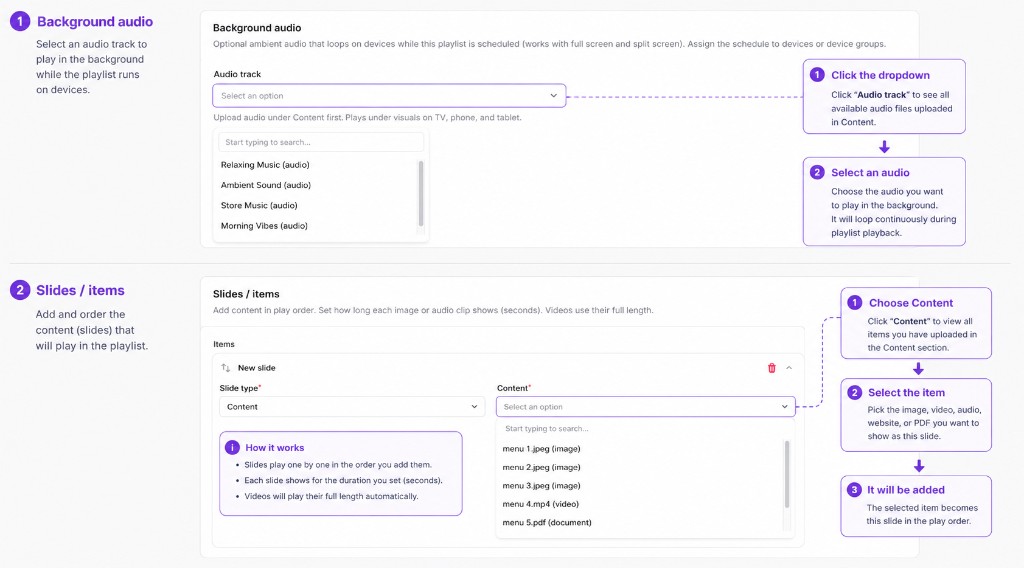
Background Audio & Slides
Select an Audio track for ambient background music, then add Slides / items by choosing content from your library and setting the play order for each slide.
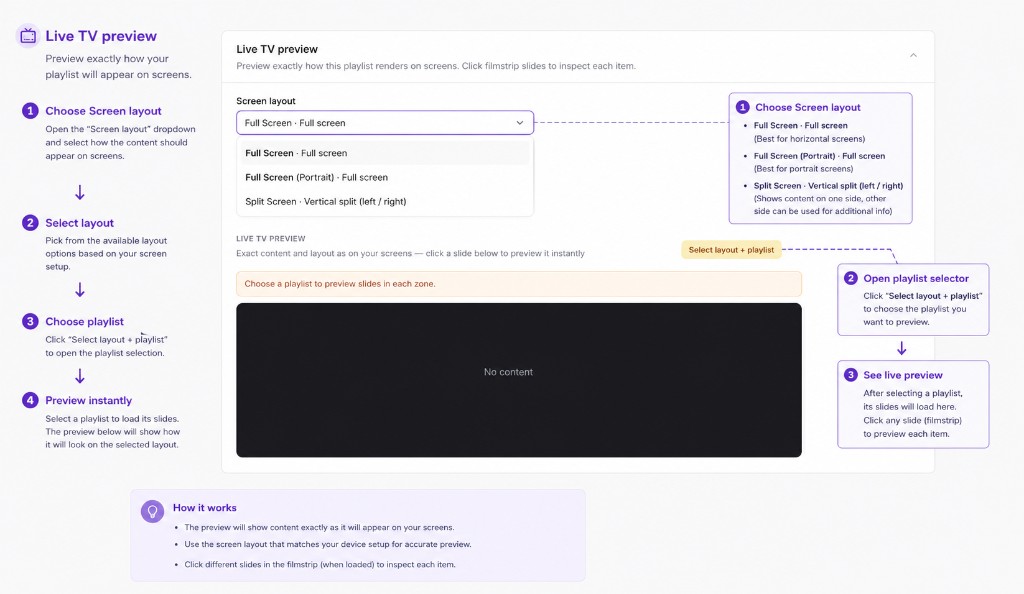
Live TV Preview
Choose a Screen layout (Full Screen, Portrait, or Split Screen), click Select layout + playlist, pick a playlist, and preview exactly how it will appear on your screens.
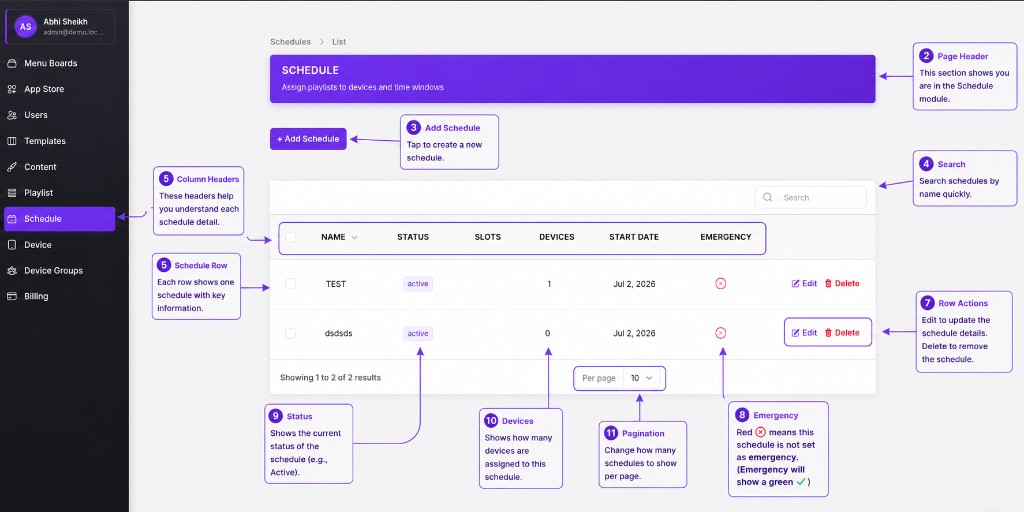
Schedule — View & Manage
Open Schedule in the sidebar to view all schedules. Click + Add Schedule to create a new one, or use Edit and Delete to manage existing schedules.
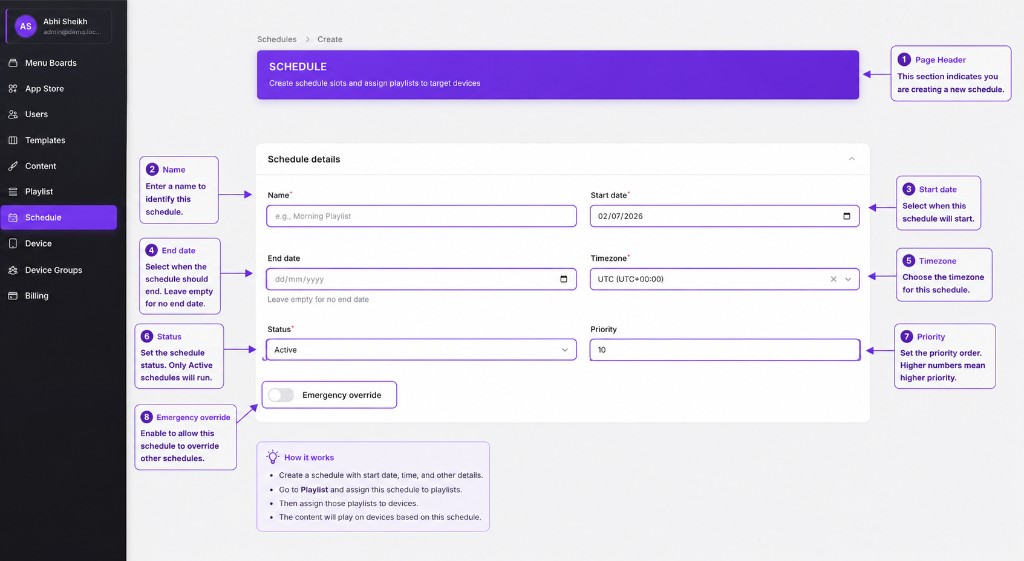
Create a Schedule
Enter schedule details — name, start date, end date, timezone, status, priority, and emergency override — then continue to add time slots and assign devices.
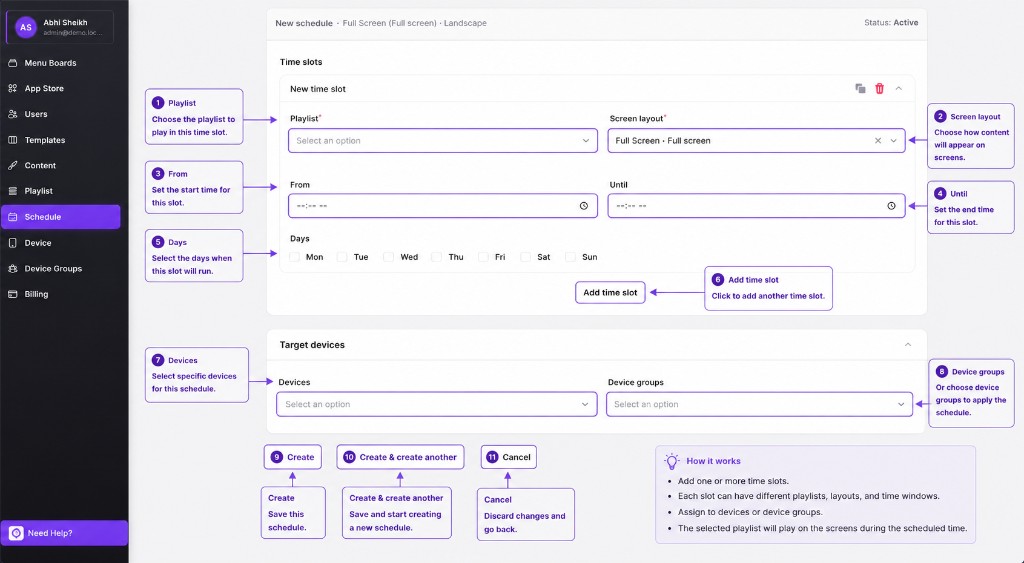
Schedule Time Slots & Target Devices
Add Time slots with playlist, screen layout, from/until times, and days. Assign to Devices or Device groups, then click Create to save the schedule.
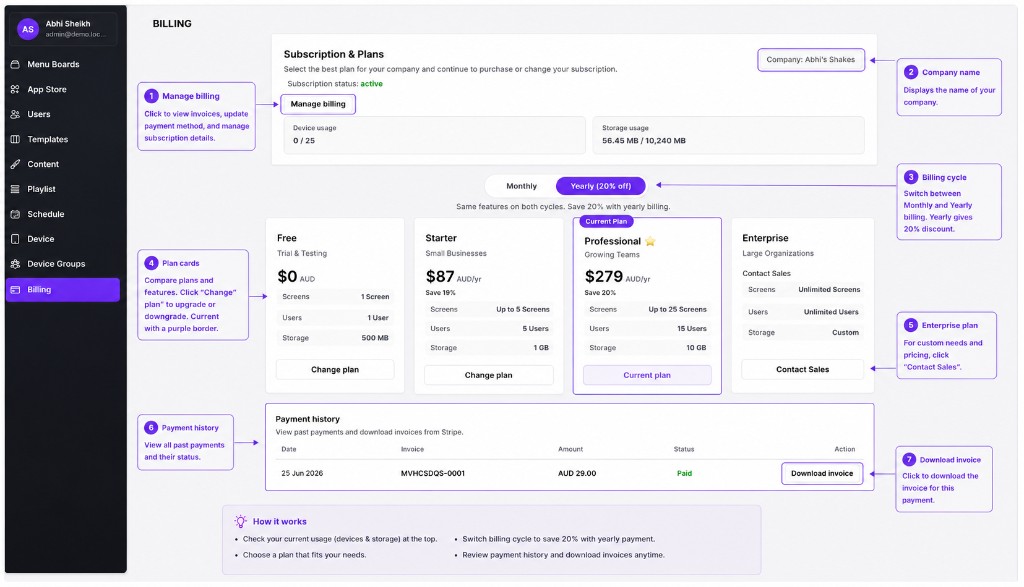
Account Billing
Billing — Plans, Usage & Invoices
Open Billing in the sidebar to check subscription status, device and storage usage, compare plans, switch Monthly or Yearly billing, and download invoices from your payment history.
You have now configured your digital signage setup in ScreenPilot, including user management, content creation, playlist scheduling, and device organization. For further help, visit the ScreenPilot Support section.